AI Decisioning Platform
Designing scalable UX patterns for AI-powered churn detection and enterprise marketing automation.
Impact
Secured $10M+ enterprise deal, outperforming Adobe
Improved UX NPS from 2 → 10
Established reusable AI workflow patterns
Contributed to enterprise AI positioning strategy
Role
Lead Product Designer
Scope
AI Agents · Churn Detection · Recommendation Systems · Platform UX Patterns · Enterprise CDP
Context
Tealium was expanding from traditional audience segmentation into AI-powered decisioning. The goal was to enable agent-based predictions — churn risk, behavioral signals, product recommendations — directly within the Customer Data Platform.
These predictions influenced real marketing spend and enterprise retention strategy. The shift required more than a new feature. It required a scalable decision system.
The platform needed to:
Generate predictions from large-scale first-party data
Support non-technical marketers
Maintain enterprise governance standards
Scale beyond a single AI use case
This marked a strategic evolution of the product.
The Problem
AI Opacity
Predictions without explanation reduce trust.
High-Stakes Impact
Outputs influenced real budgets and customer retention strategy.
Configuration Overload
Marketers needed flexibility without technical overwhelm.
Human-in-the-Loop Requirements
AI predictions required review, validation, and governance.
Versioning & Lifecycle Management
AI agents required states and publishing controls — not simple toggles.
The challenge was designing for decision confidence, not just usability.
Approach & Strategic Process
Platform Framing
Partnered with Product to define AI Decisioning beyond churn detection
Identified lifecycle, governance, and scalability requirements early
Clarified MVP vs long-term foundation
🪴Visual: Early system map of how AI integrates into CDP ecosystem.
Lifecycle Modeling
Mapped the full agent lifecycle before interface design.
Defined a scalable structure:
Draft → Review Needed → Published
This ensured governance, safe experimentation, and enterprise readiness.
🪴Visual: Lifecycle diagram.
Trust & Transparency Exploration
Explored:
Confidence indicators
Explanation surfaces
Input visibility
Summary states
Validated clarity through iterative feedback with internal stakeholders.
🪴Visual: 2–3 comparison mockups of AI transparency patterns.
Strategic Contribution
Defined the Agent Lifecycle Model
Established a reusable Draft → Review → Publish structure that:
Reduced risk
Supported governance
Enabled scalable expansion to future agents
This pattern became foundational across AI features.
🪴Visual: Annotated publishing UI.
Balanced Automation & Control
Strategic decisions included:
Auto-generating required event attributes in the background
Locking system-critical components
Allowing strategic flexibility where it mattered
Surfacing only meaningful configuration choices
This reduced cognitive load while maintaining enterprise flexibility.
🪴Visual: Before/After configuration complexity comparison.
Established Cross-Platform AI Patterns
Aligned interaction models across:
AI Note Generator
AI Summary
AI Recommendation & Fill
AI Agent workflows
Created consistency in:
AI indicators
Status states
Review flows
Confidence cues
This prevented fragmented AI experiences.
Visual: Pattern consistency comparison across features.
My Strategic Contribution
User Research
Usability test goals
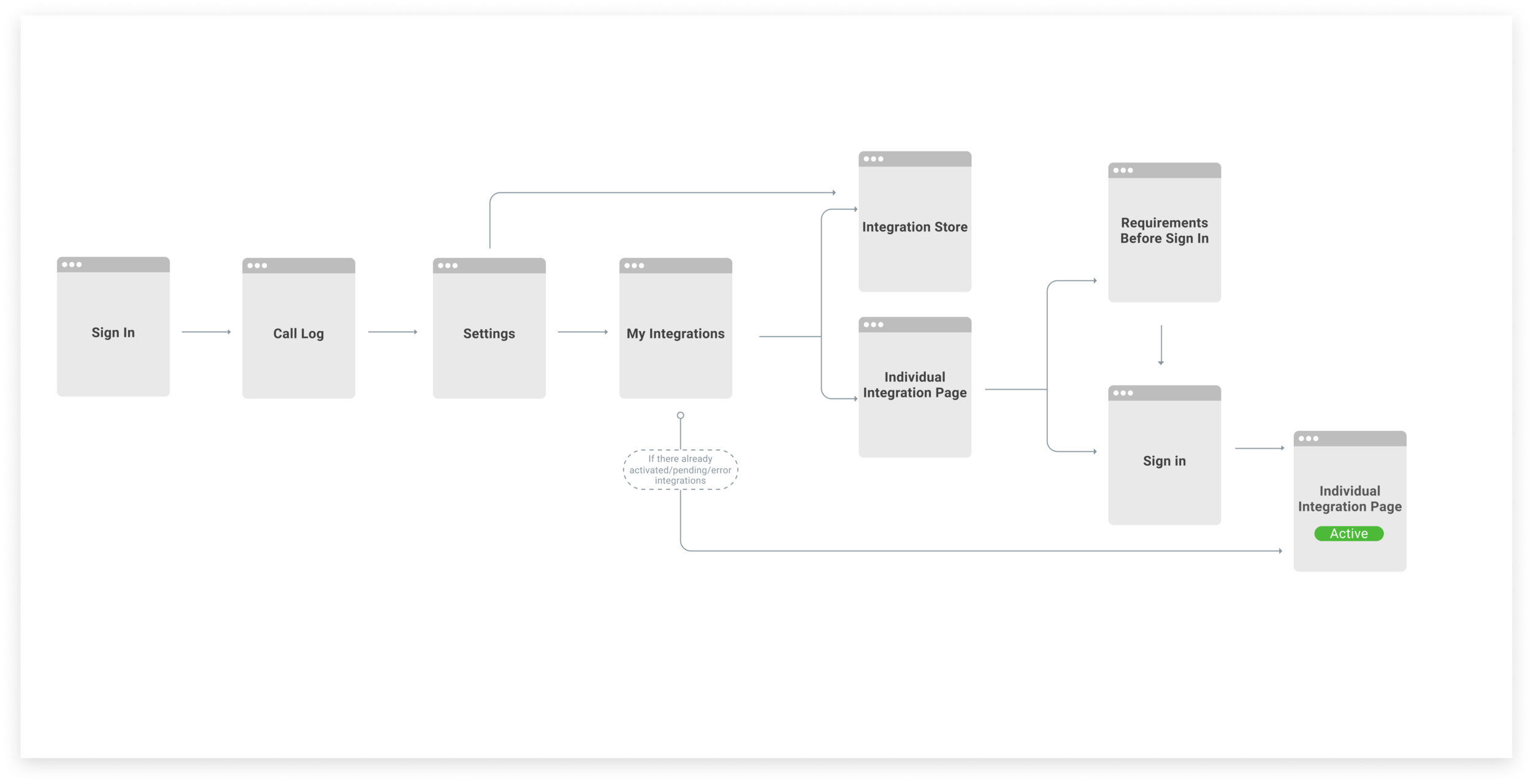
We want to observe the users login, find the integration page, authorize a Salesforce integration, confirm that it is successfully connected, add a trigger, and identify all the integrations that are in pending state.
testing senarios.
Imagine you are a marketer and you want to connect Google Ads to CallRail. How would you do that?
Now image you want to send only first time callers as a conversions to Google Ads. How would you do that?
Now image you want to all you “Active” integrations. How would you do that?
Results
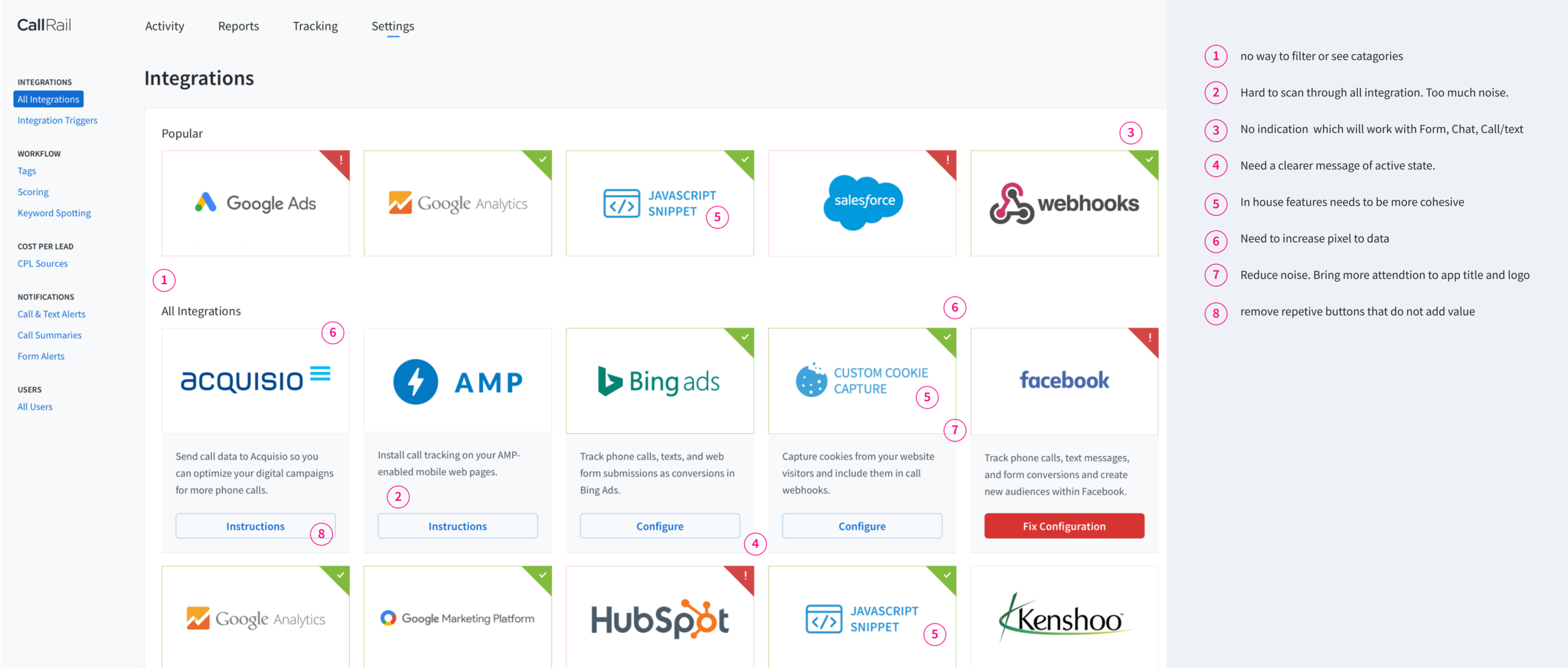
Users have difficulty understanding the system at first glance, thus rely heavily on trial-and-error to complete tasks.
User could not find integration page
Click around for a bit, then click under “Manage Account”
Decided to click on “Help” icon on the bottom of the screen and went to “Help Center”
Found integration page after a quick search from “Help Center”
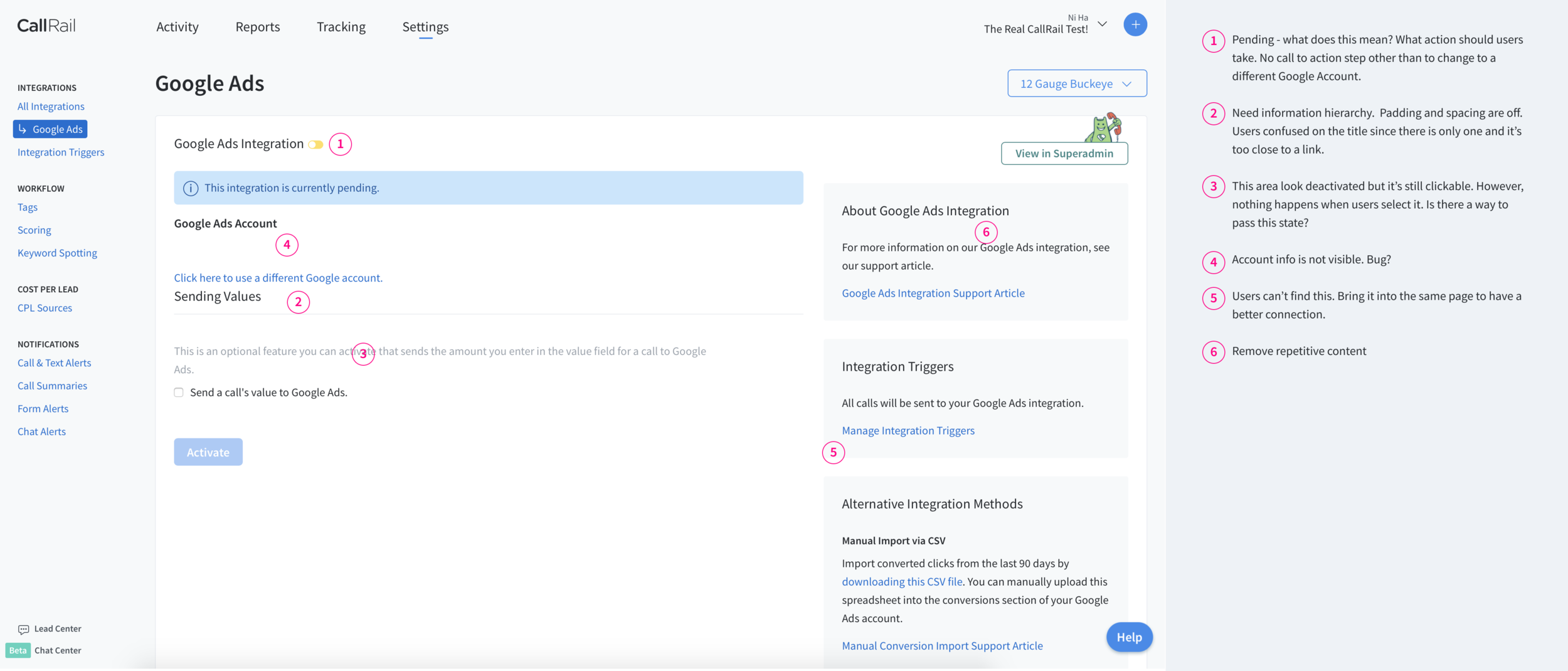
We found bug/bad ux on the Google Ads page.
User click “Authorize” and entered username and password successfully
Integration was still inactive even with the success alert message
User had to click update again to truly “Activate” integration
Integration state ui toggle is inactive but CTA button is saying “Update”
User was confused by the toggle icon next to title of card
Users thought it was clickable then assume it is broken
Want to toggle to turn on the integration like other app
Do not know what the yellow toggle mean
User is not confident if he actually turn on the integration.
Doesn’t not see is actual “active” message on the page. Wants a more prominent indication.
Think the toggle is confusing and not a strong indication of integration state
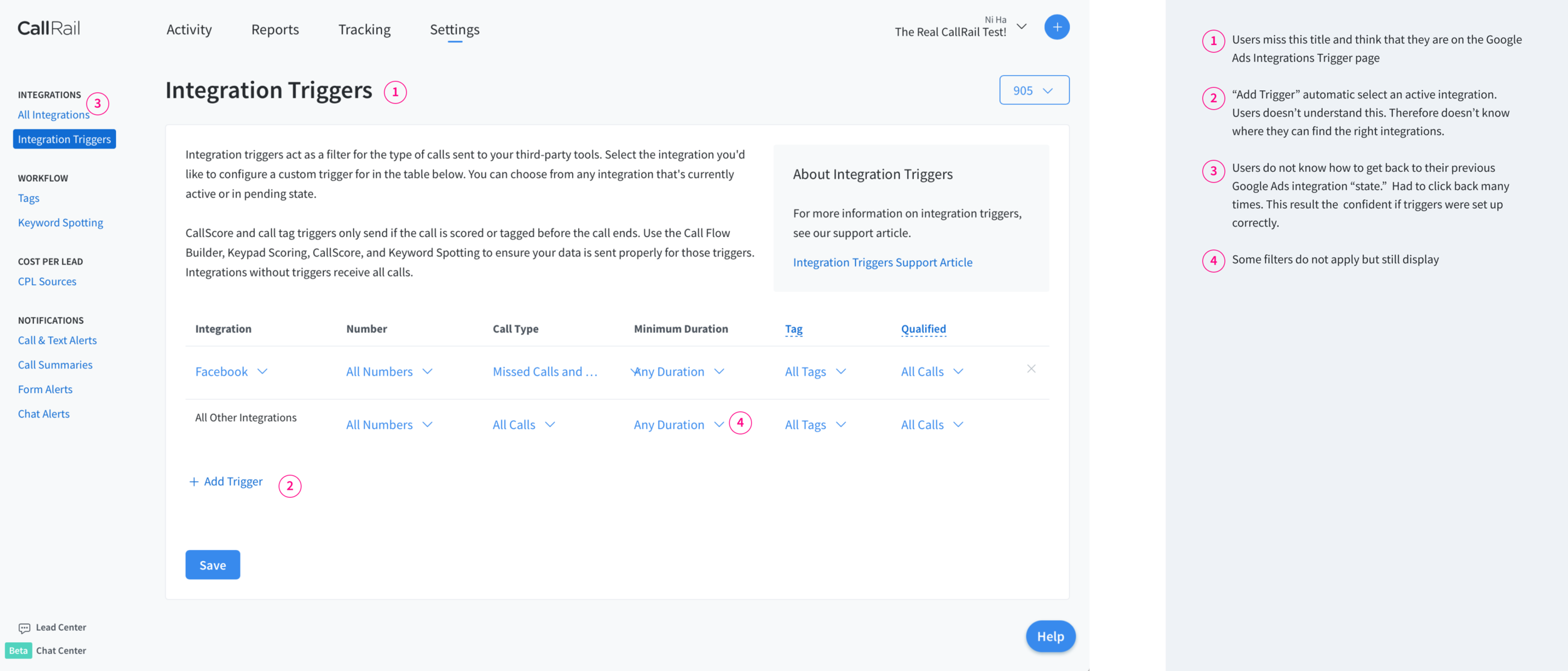
User fail to turn on triggers for Google Ads
User found “Manage Integration Filters” link quickly.
Thought he was still in a subpage for trigger setting specifically for Google ad
Did not read any title or any other content
Added a trigger so another integration
User assumed that he successfully turn on trigger
User wants to go back to the “main” Google Ads page but didn’t know how. He click the back button several times. User lost confident if his trigger actually got saved because he thinks it “undo” what he did by clicking the back button.
User used the browser search tool find which integrations that will work for Form Tracking
Searched form and looked for highlighted keywords
User doesn’t know what yellow corner UI means
Had to click into the app and search. User figured it out after he hover over UI toggle.
My details analysis can be found here: Integration Usability Test 1 General Takeaways
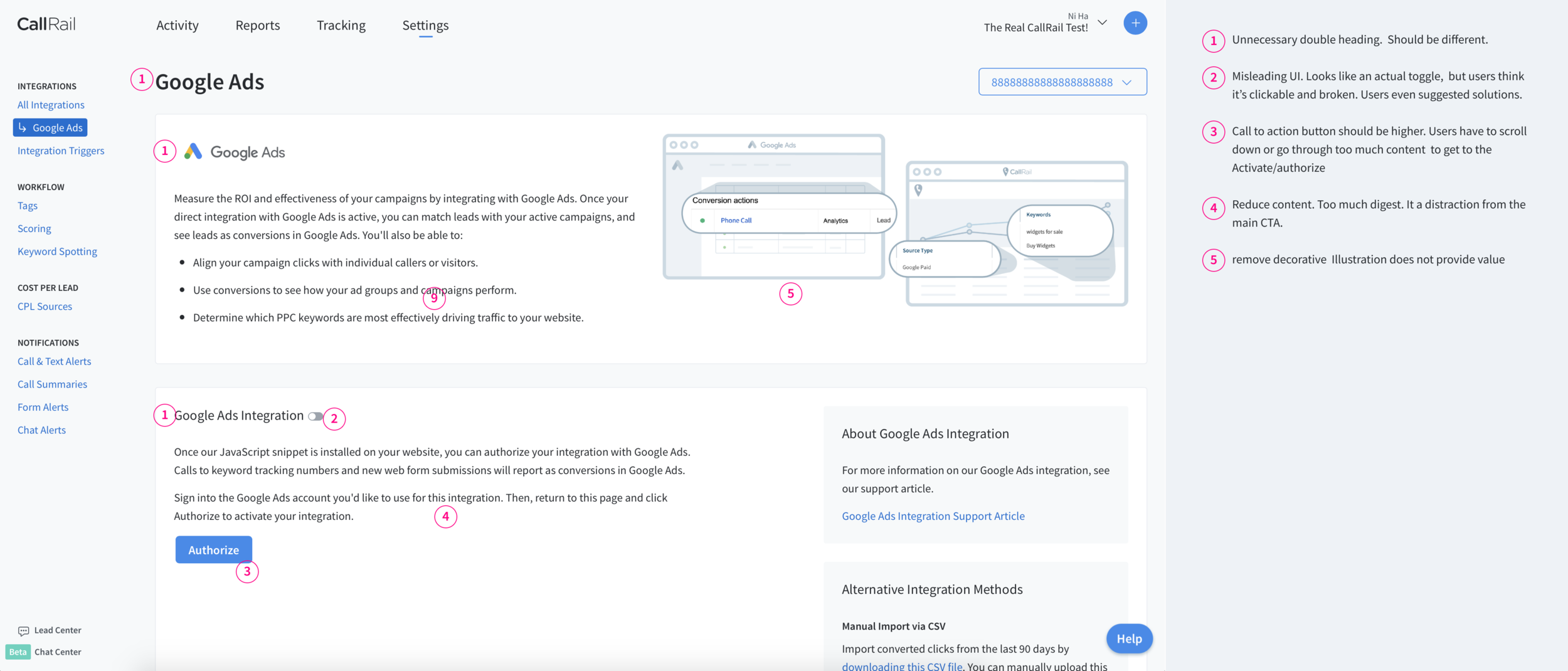
Audit of current integrations feature
Finding Solutions
STEP 1
The first step after understanding the problem was to sketch multiple different possible solutions to the problem. I do this first as a creative exercise before I develop bias form conducting a competitive analysis.


STEP 2
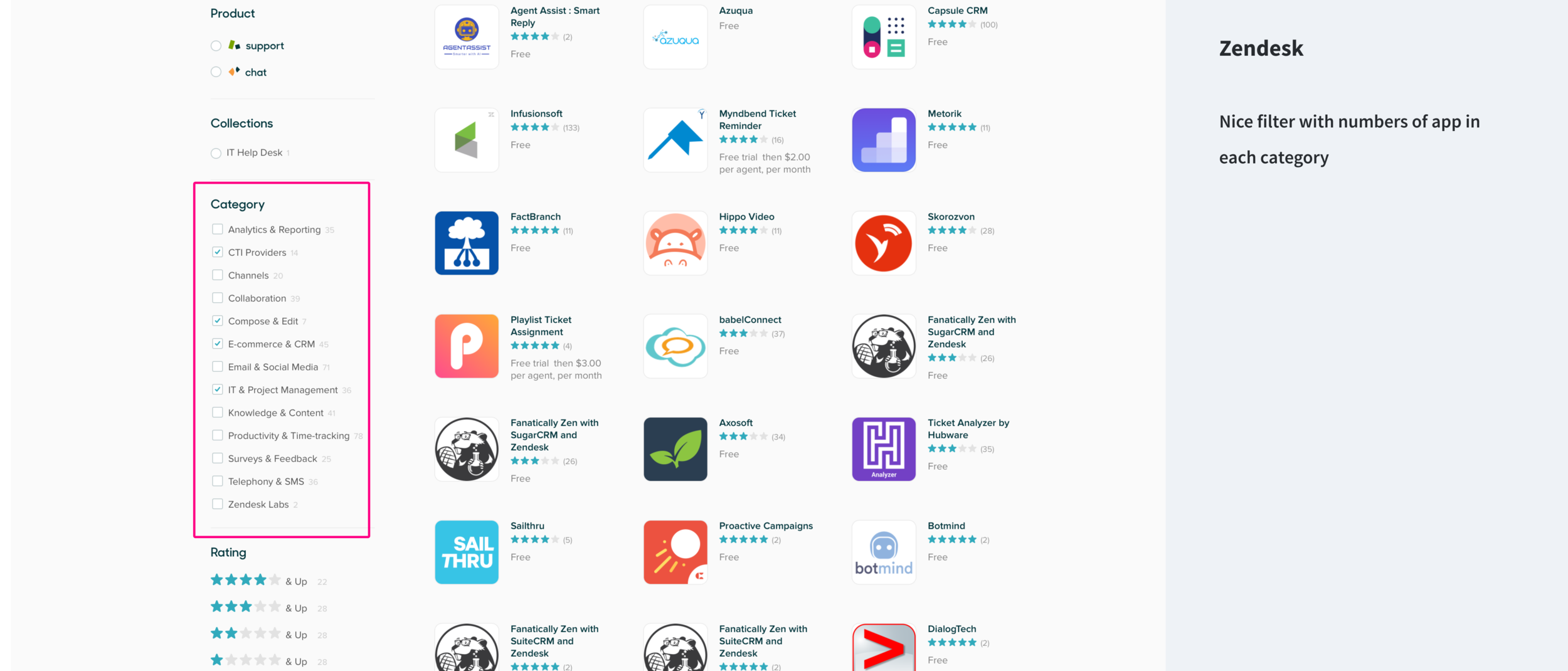
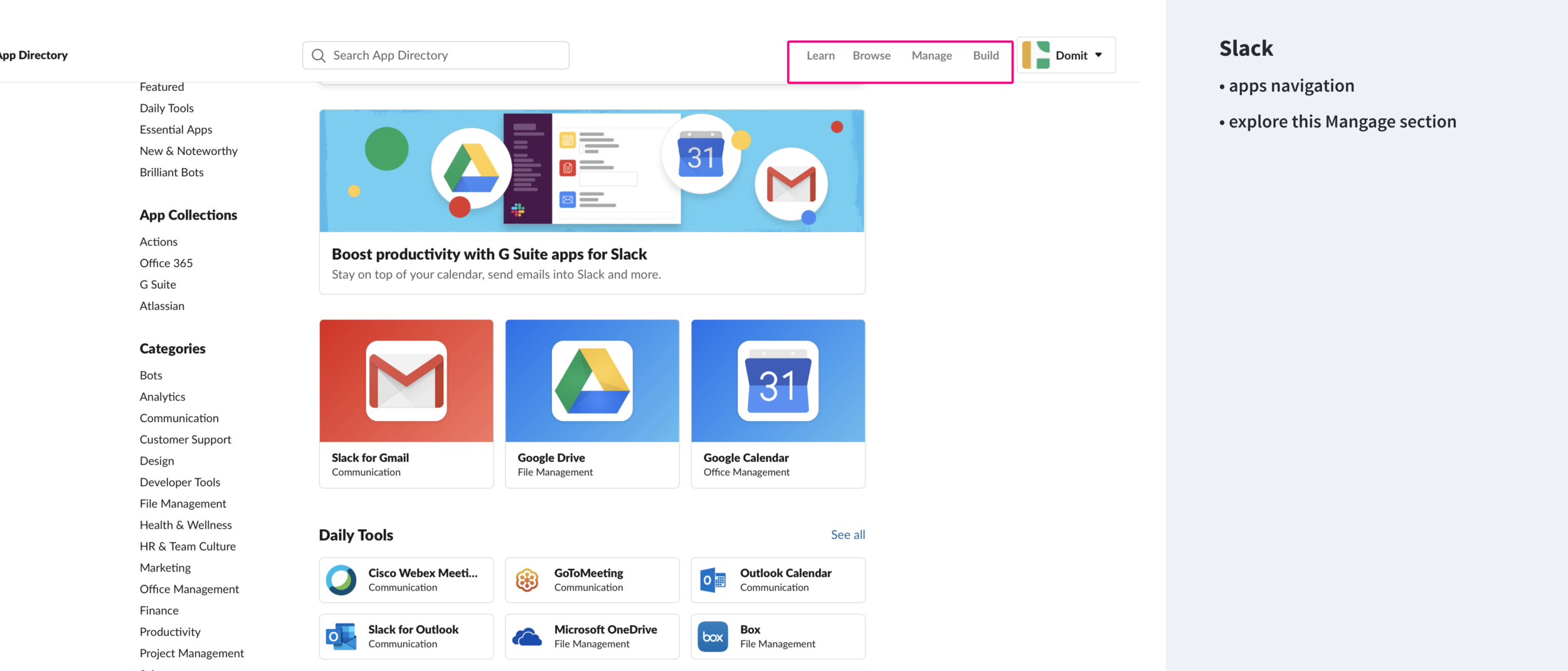
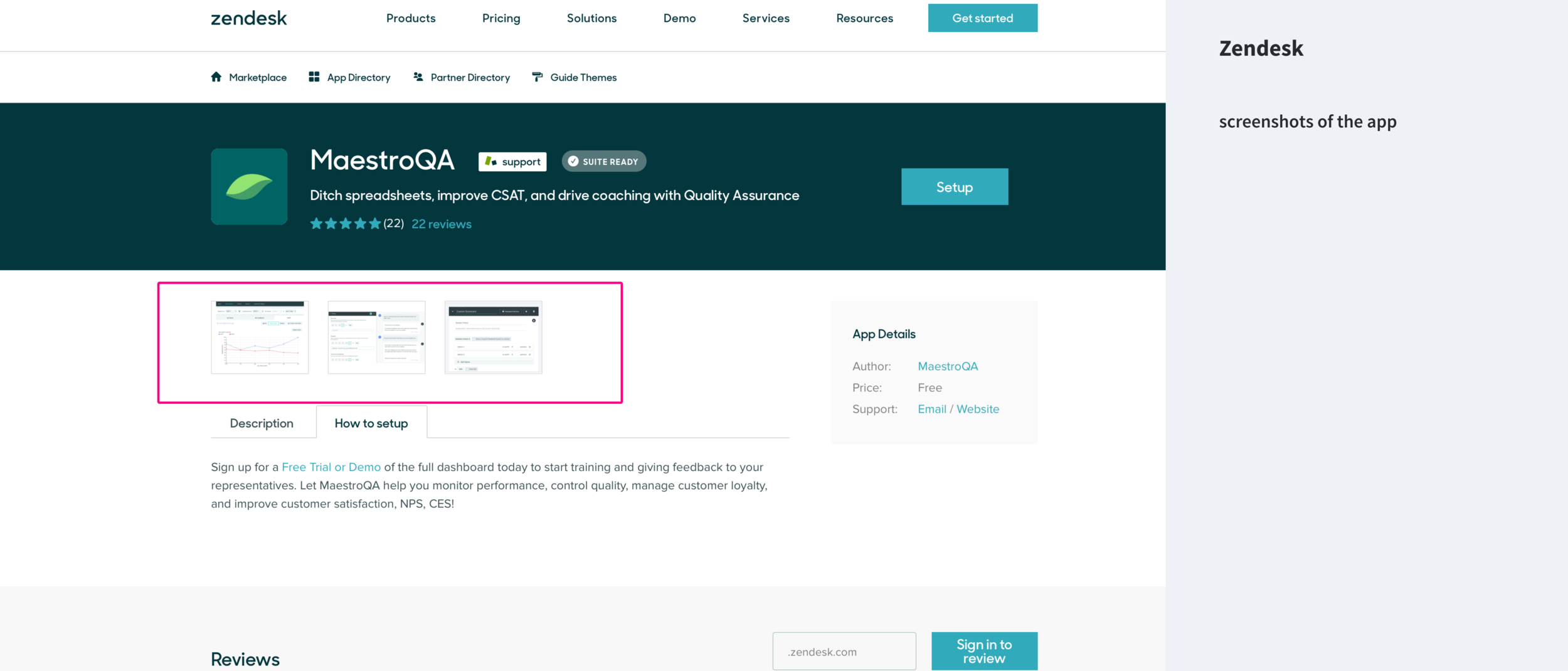
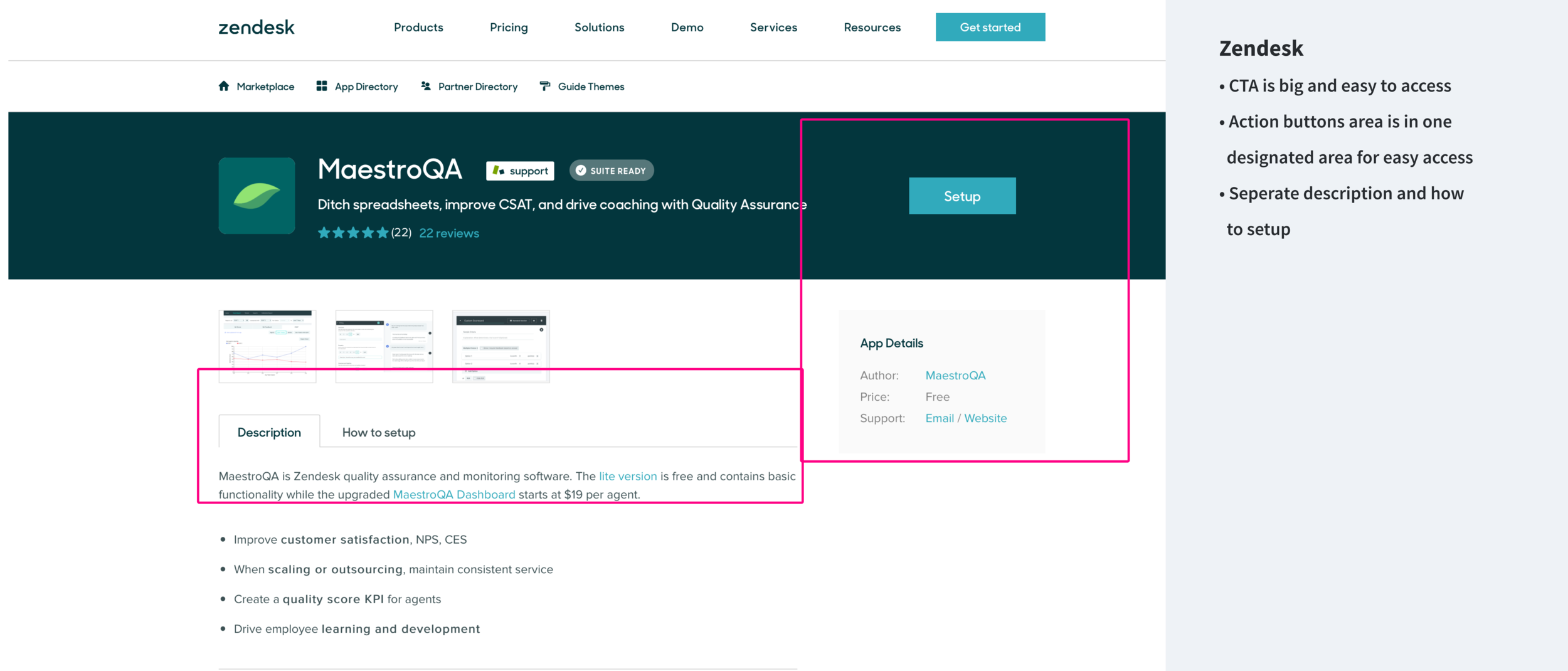
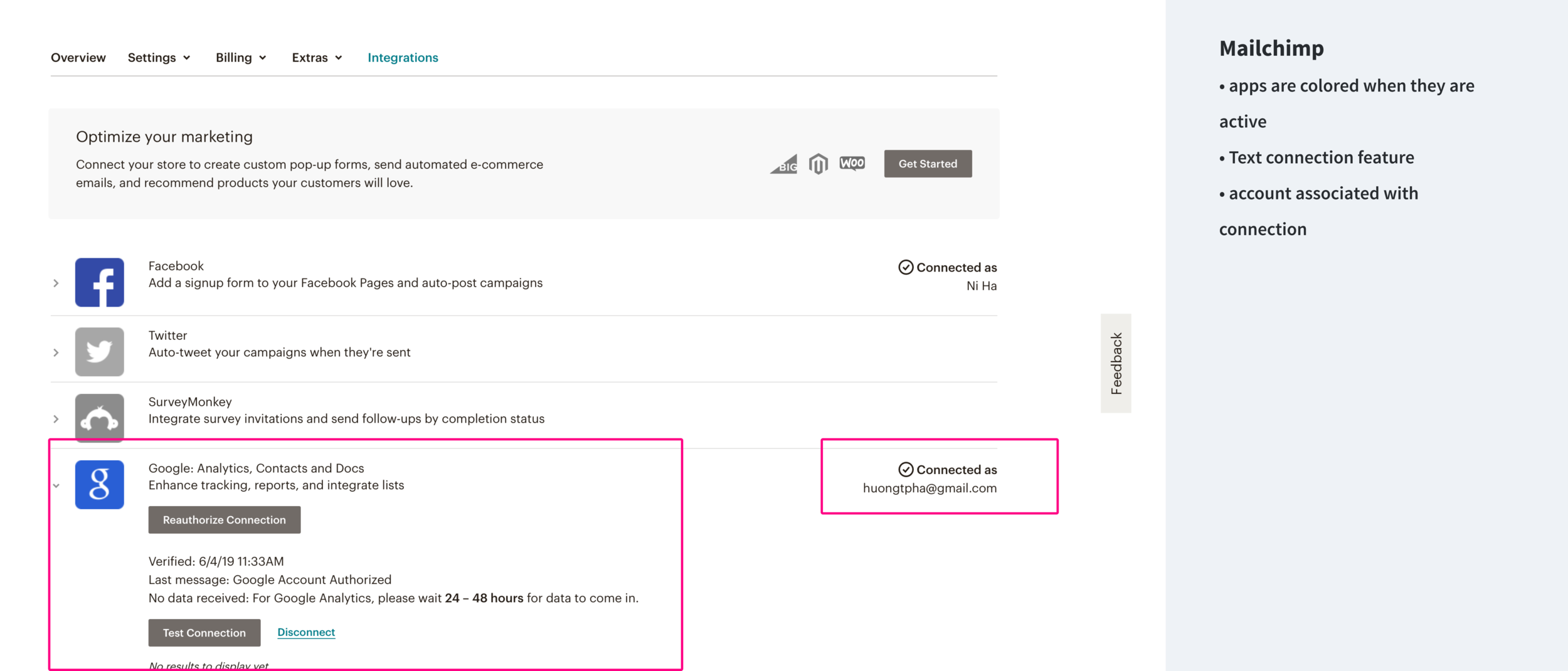
Study the UI design of leading competitors and collect inspirations
Shopify, Zendesk, Mailchimp, Slack, Call Tracking Metrics, and more...
I specifically wanted to understand how our competitors approach up-sell, app info, gallery, active state, pricing, and set up process.
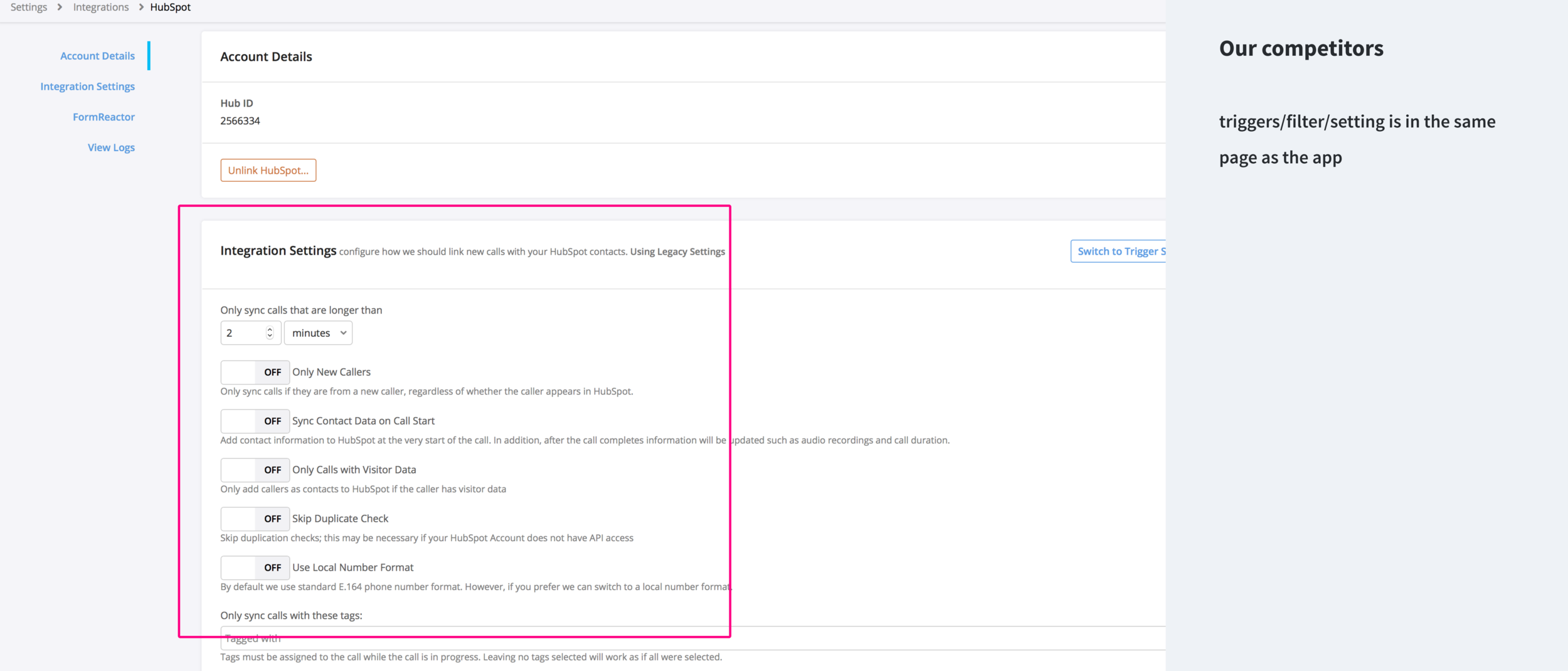

STEP 3
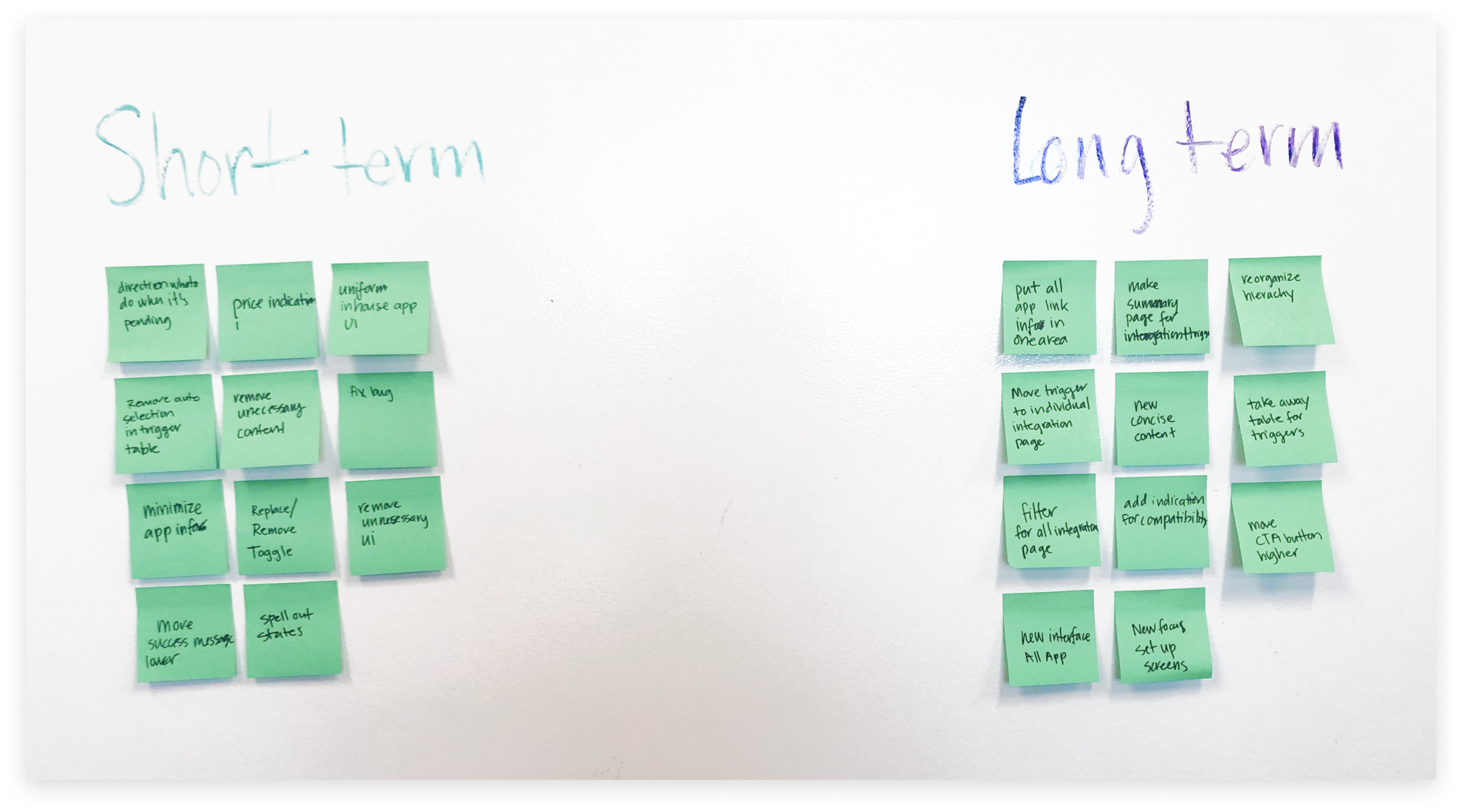
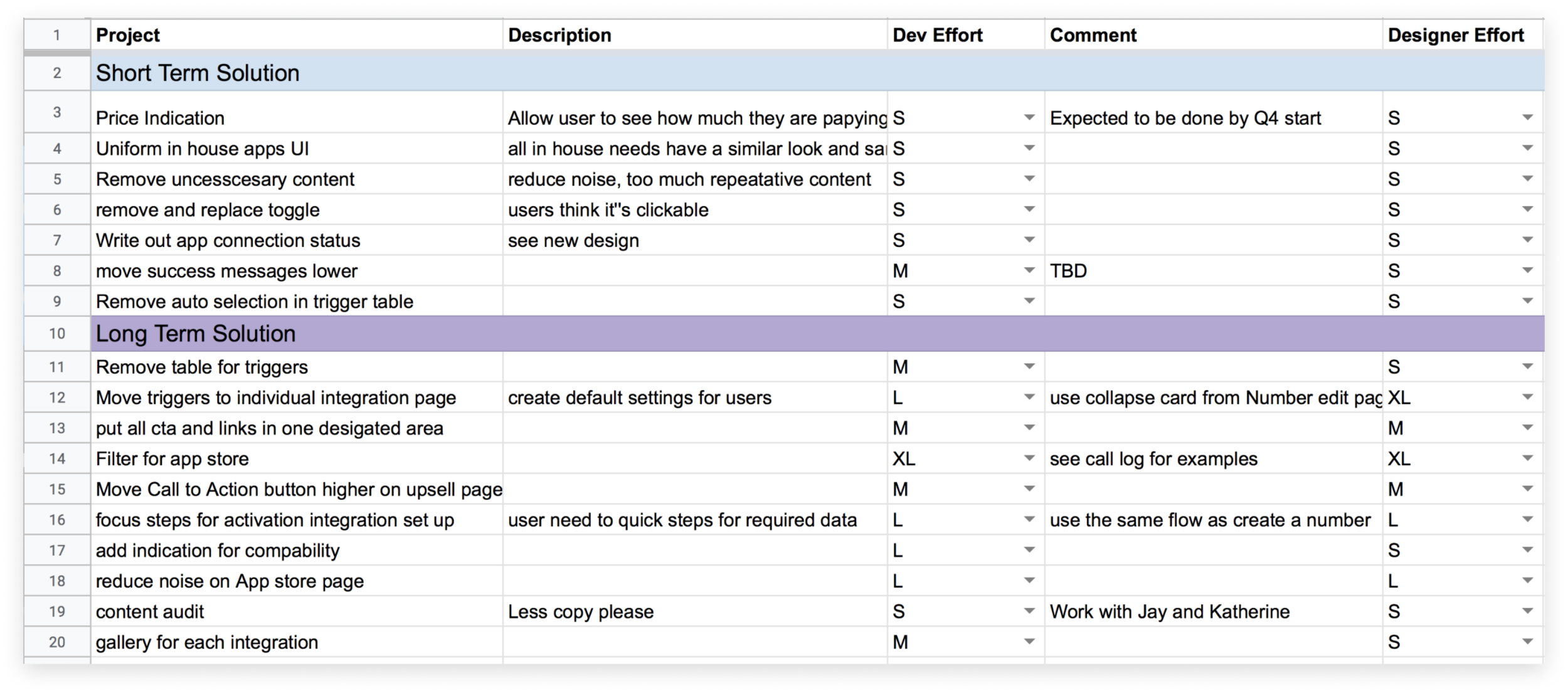
After the above research, I sat down with my team to brain storm all possible improvements to the current screen. We wrote ideas on sticky notes, categorized, and consolidated them. We then further categorized our ideas into quick wins (sort term) and a larger redesign effort (long term).
Design Phase 1
Implementing Short-Term Solutions
I replaced the toggle icon with a text pill to indicate connection status
Unnecessary content like "click here" was removed.
Information are grouped together with better padding. This allow user to group different clusters of content at a glance.
I replaced "Select your delay" to "Immediate". This clarified the confusing of the default time if users do not make a selection.
I made calls conversion visible to users. Previously, users have no way of turning it off nor know that CallRail automatically have it turned on.


Design Phase 2 - Long-Term Solutions
Wireframe

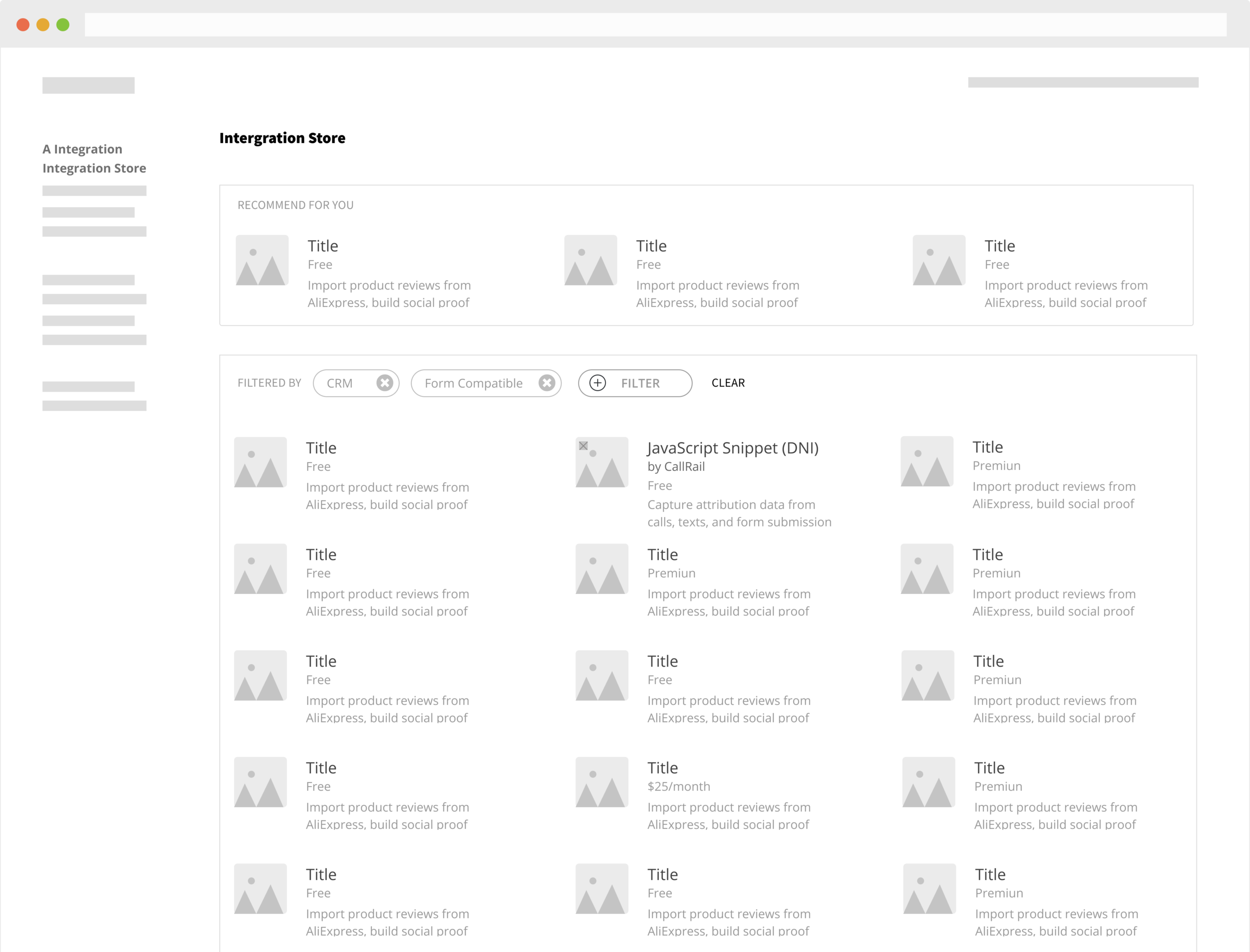


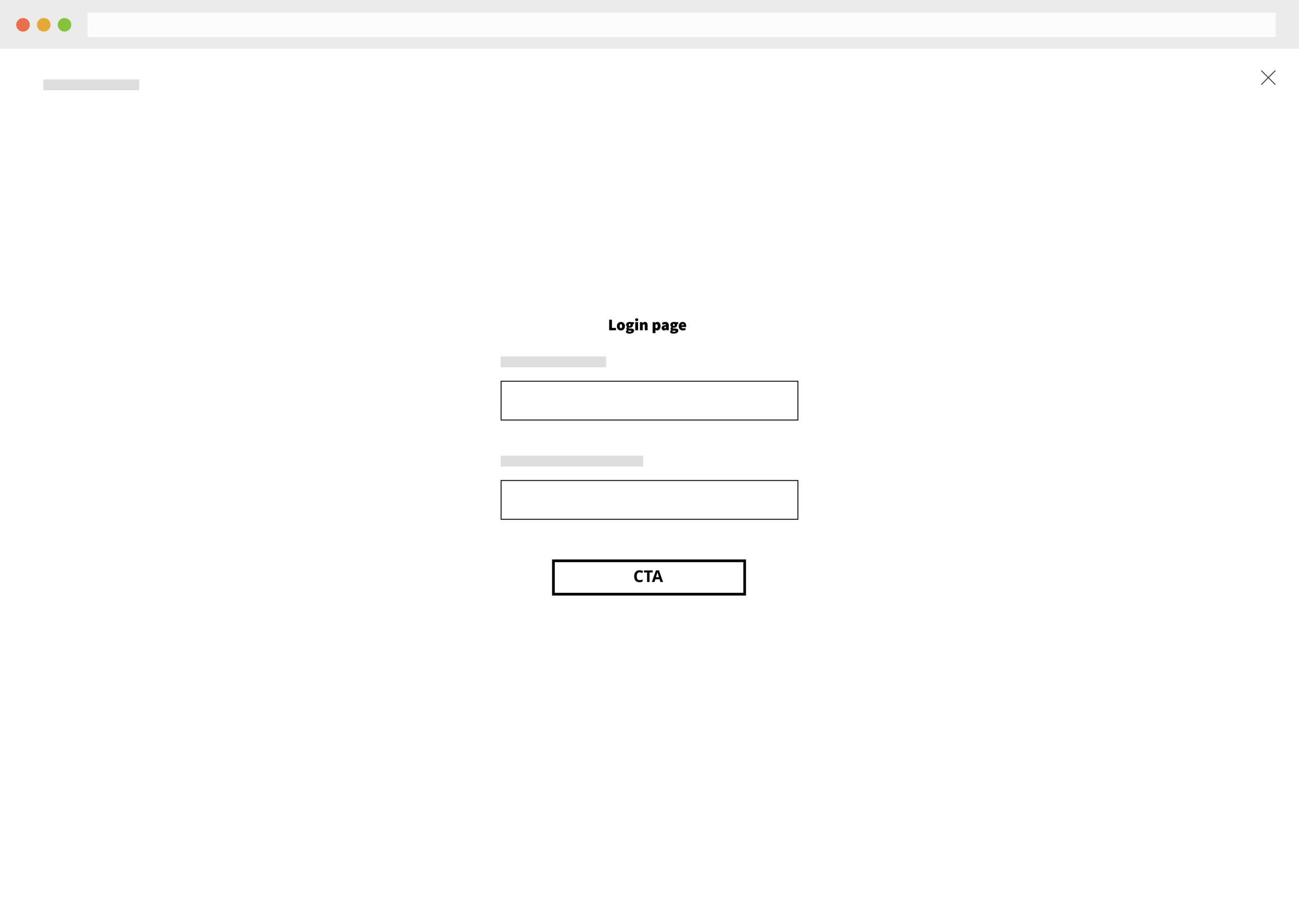

High Fidelity
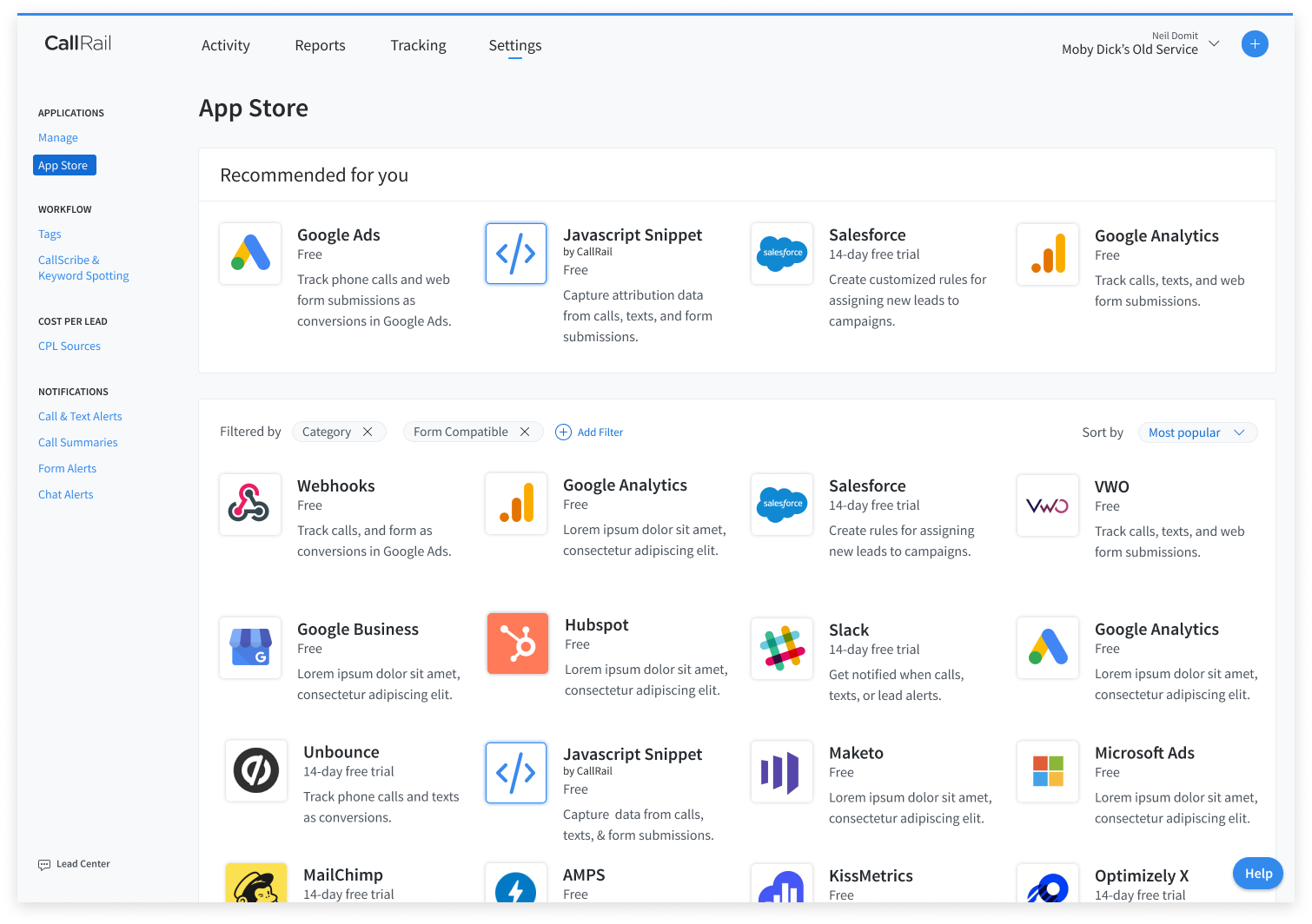
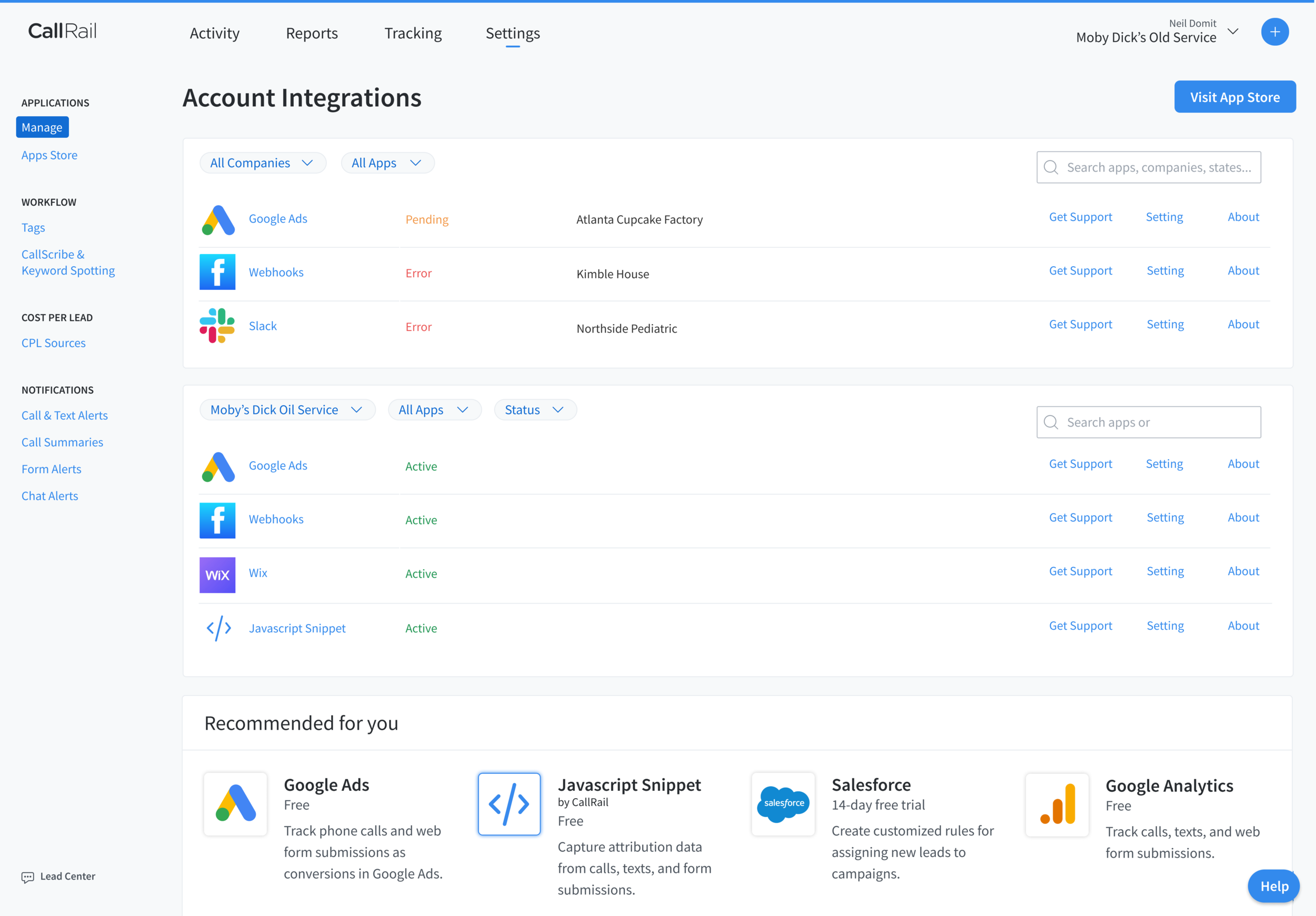
App Store
I increased the pixel to data ratio by removing borders, removing redundant buttons, and reducing other visual noise. That further increased the visual hierarchy of the logo and title, which are the most important pieces of information.
Google ADs - individual app Upsell Page
Most users come here to activate the app. To support our users primary goal on this page, I moved the CTA to activate the app higher on the page and increased its visibility. To reduce visual noise, I removed the illustration that does not provide accurate or meaningful information.
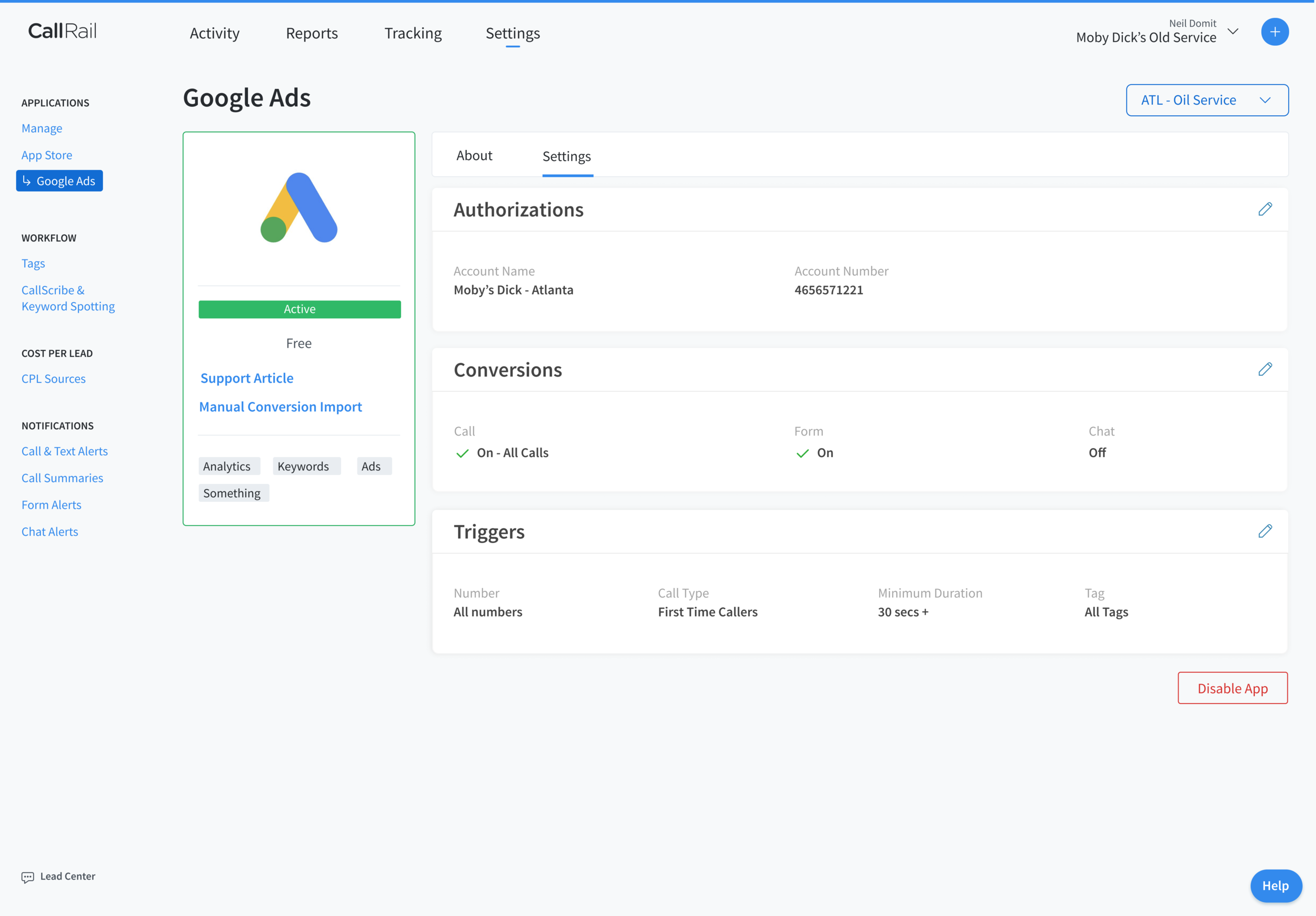
Google ADs - individual app Activated page
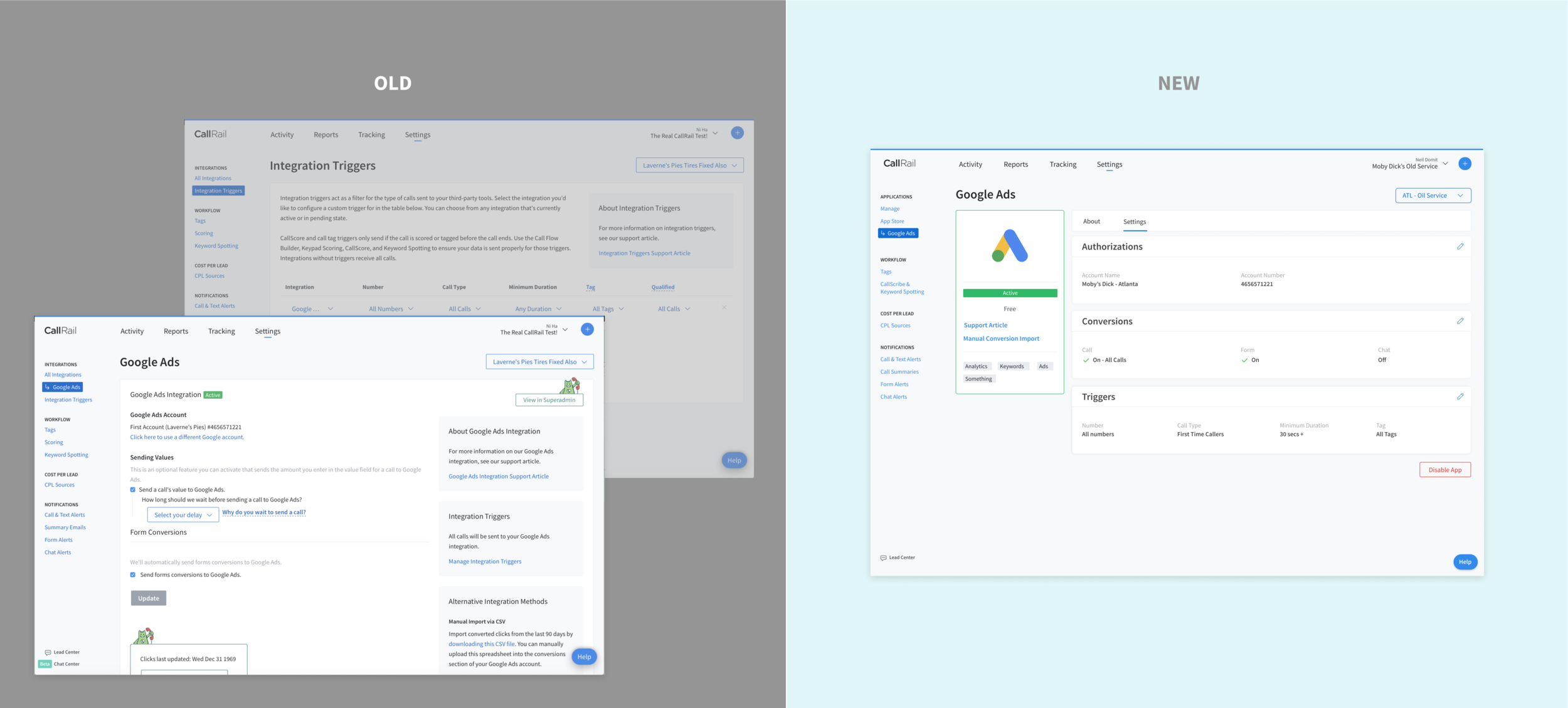
I removed “Integration Triggers” page, and moved the Triggers management functionality to the individual app page. We saw a big improvement on in our usability tests.


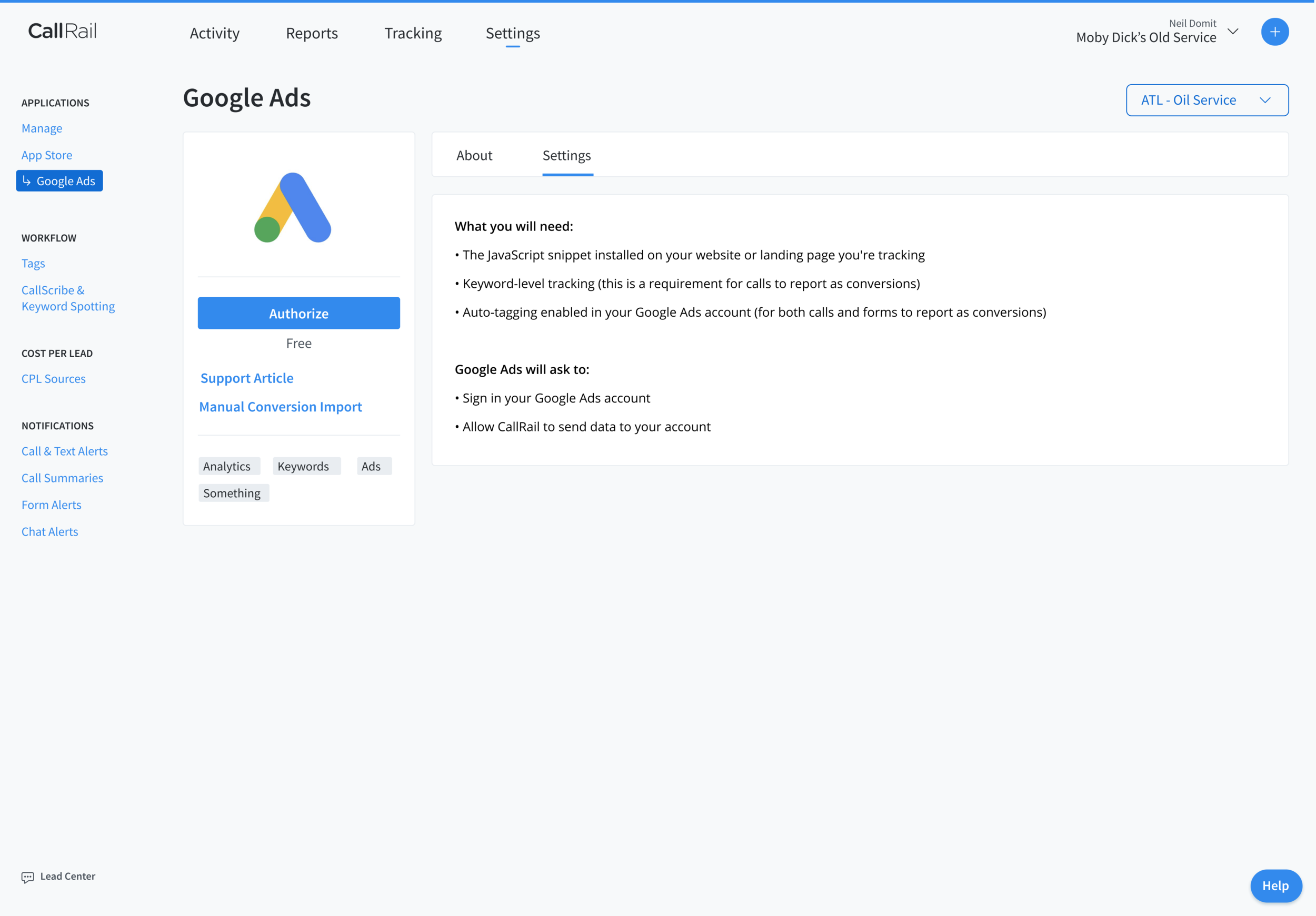
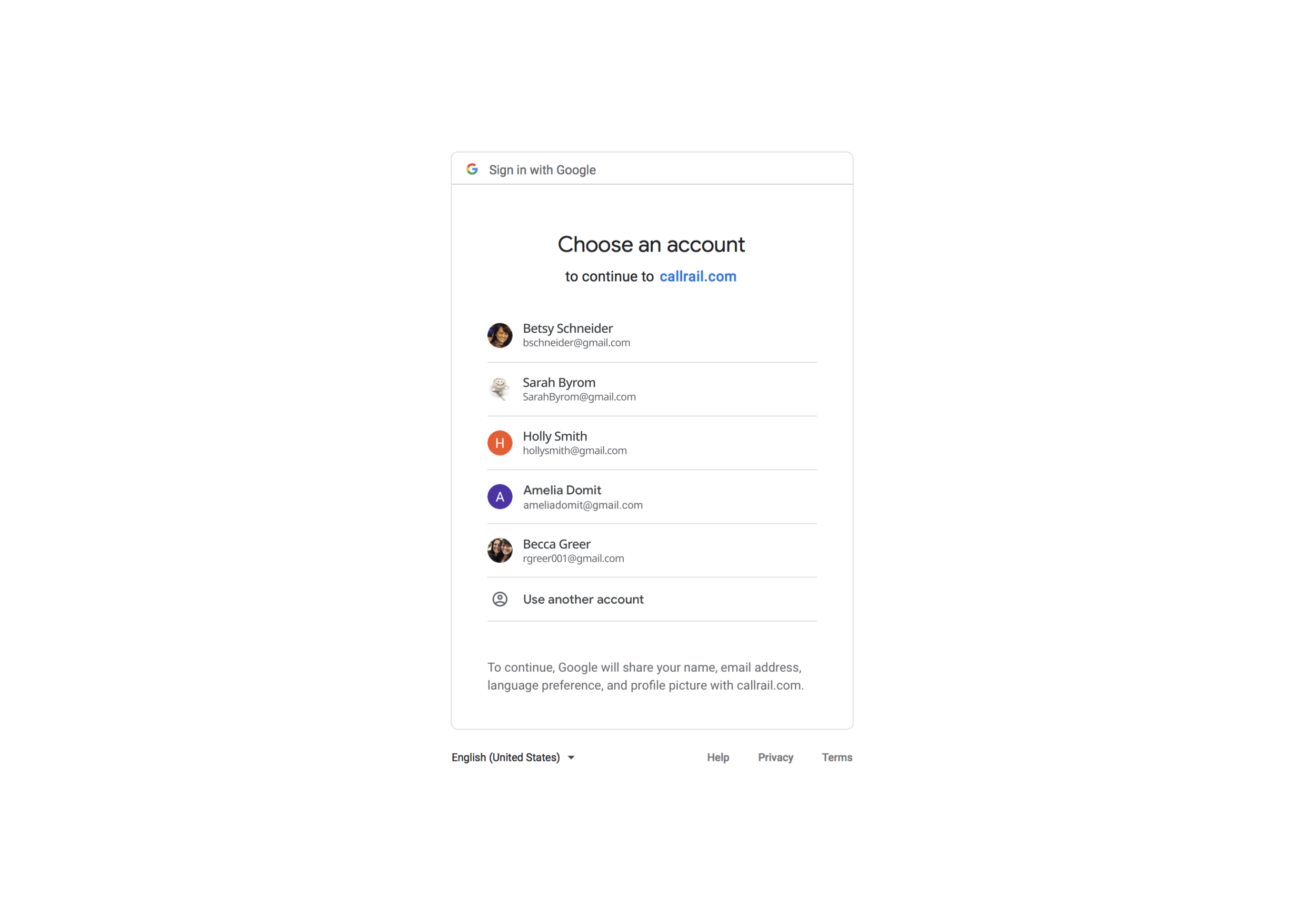

Usability Testing
To validate our short term and long term designs, we used the same usability test script from our initial test to test our new designs. In our user tests for both short term and long term designs we saw improved task completion.
Results
Users successfully found the integration page.
Click on “Tracking,” “Activity,” then “Settings”
Users were confident that they were able to turn on Google Ads integration.
James pointed that the “Active” pill is saying “active and it’s green.”
He said, “my account information is visible, which is telling me I’m connected.”
User successfully turned on triggers for Google Ads.
User looked for the word “Triggers” and tried to click on the text. Then saw an edit icon.
User took less than 15 minutes to complete all scenarios. Prior to our redesign, users took more 30 minutes to complete the test.
My details analysis can be found here: Integration Usability Test 2 General Takeaways
Results after short-term implementation
After implementing our short term design changes, we saw a 23% reduction in support calls related to the integration page, and a 14% increase in connections.
Current Status
I am working closely with develops and product manager every day while we are building our long-term solutions. We have divided the design into small tickets. This will make it easier for code review and quick QA.
Plans After Shipping
• Continue to do quality assurance and reporting for bugs.
• Watch users interact with new features on Full Story and monitor Google Analytics.
• Use Zendesk to monitor support tickets relating to the integrations page.
• Visit customers for UX interviews and observation.